
Are you wondering if you can watch Eufy camera on TV? The Eufy-branded security camera system lets you monitor a live video feed from one or more Eufy cameras set up around your home or business. That way, you will know immediately if a trespasser is trying to get inside your home or business.
The set-up process of the Eufy camera system requires you to connect one or more Eufy cameras to a television or mobile device. Depending on your preference type for monitoring your property, you can use some or all of the connectivity methods.
In this article, we’ll show you how to watch Eufy camera on TV. We will provide three methods that you can try to integrate your security system into your daily routine seamlessly.
The Top 3 Ways to Watch the Eufy Camera on Your TV
You can watch the Eufy camera on any television with an HDMI port. Viewing the Eufy camera on television is one of the most popular monitoring methods because it lets you see a large-size video of the security camera livestream.
It also enables you to see live video feeds from multiple cameras simultaneously. Are you curious to learn how to connect and watch the Eufy cameras on your television? Below are the top three ways:
1. HDMI Wired Connection
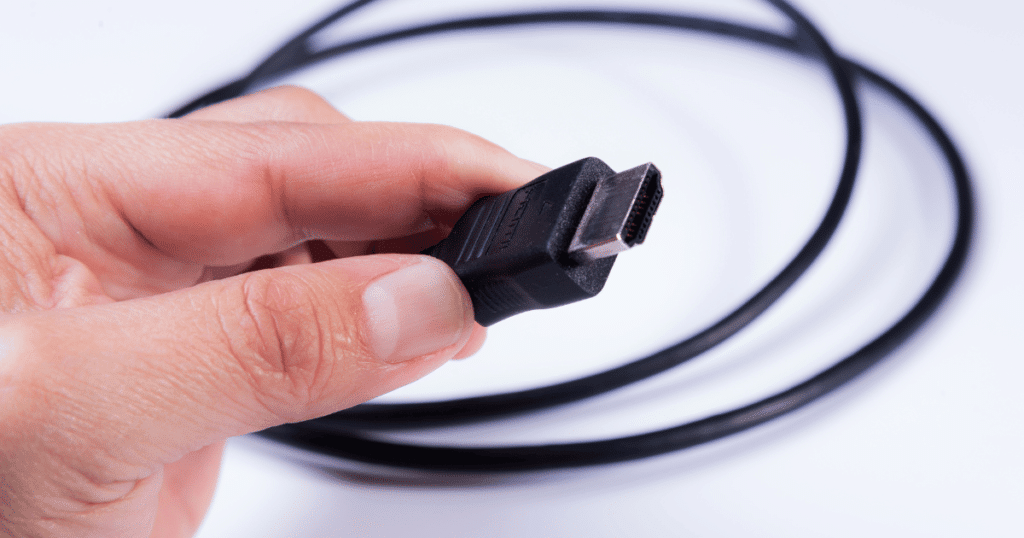
If you prefer the old-school wired connectivity method, you can use an HDMI wire to connect a Eufy camera to any television with an HDMI port. It does not necessarily have to be a smart television as long as it has an HDMI port.
Most flat-screen televisions sold within the last 10 to 15 years have at least one HDMI port available. However, connecting multiple Eufy cameras will require a separate HDMI wire for each camera.
Monitoring multiple cameras will also require your television to have more than one HDMI port. Newer flat-screen televisions have at least two or more HDMI ports, so you could make it work in this case.
The only real complication with the wired connectivity method is linking far-away cameras to your television, especially if you installed the cameras outdoors. You will need extra long HDMI wires to make it work in this situation.
2. Security Camera App
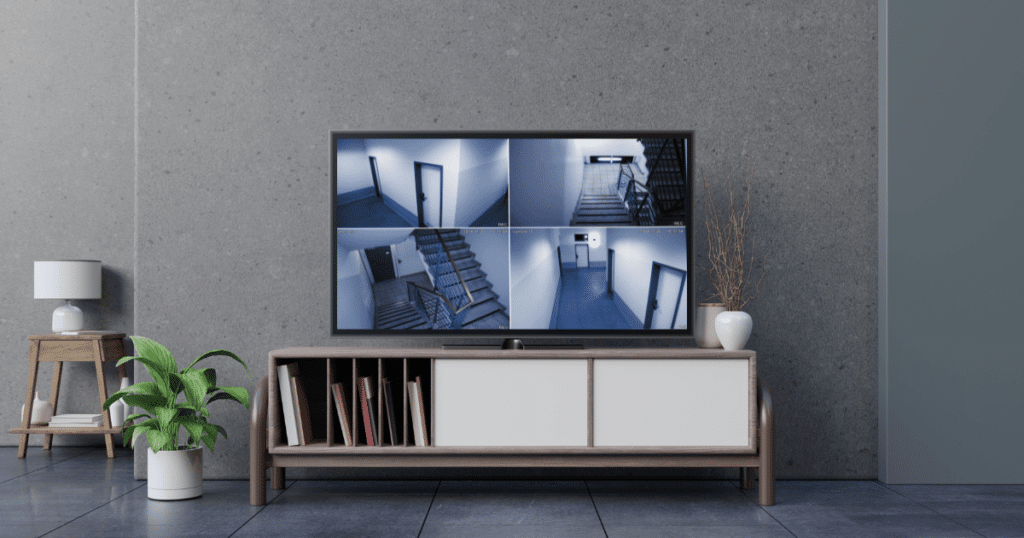
You can view the security camera livestream from any device with a Wi-Fi connection, whether a smartphone or smart television. Smart technology has revolutionized the security industry because people can now monitor their property with various devices.
There are two ways to utilize a Wi-Fi connection to watch the Eufy camera on your television. You can use the HDMI streaming stick or download a security camera app for your smart television. Here, we will discuss the security camera app method.
First, download the Eufy Security app onto your smart television. The alternative app is TinyCam Pro, which supports more than 12,000 different models of security cameras. You should find Eufy Security or TinyCam Pro listed in your television’s app store.
Next, open the camera app and select ADD IP Camera. Enter or select your security camera information, such as the name, brand, and model. If you are unsure about the specifications, you can check your product’s packaging.
Afterward, it should ask you to enter your Eufy account username and password to link it to your account. Enter the channel number of any particular Eufy camera to see a live stream of its video. Play around with the controls to learn how it works.
You May Also Like: Can You View Wyze Cam on TV?
3. HDMI Streaming Device
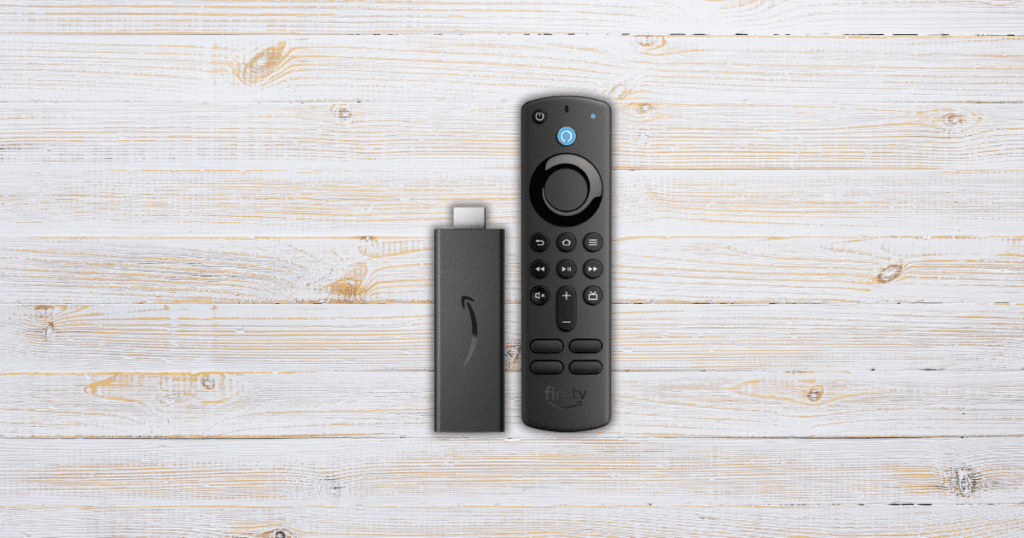
An alternate Eufy camera viewing method involving a Wi-Fi internet connection is to use an HDMI streaming device, such as Google Chromecast or Amazon Firestick. All you need to do is install the streaming stick into any HDMI port on your television.
The HDMI streaming device has built-in Wi-Fi to stream media content wirelessly through your wireless internet router. These devices let you download apps like Netflix, Hulu, and other streaming services. In addition, you can link your Eufy security camera system to it.
Here is a brief rundown on how to connect the Eufy security camera system to Google Chromecast and Amazon Firestick:
Google Chromecast
- Insert the Google Chromecast Stick into the HDMI Port
- Download the Google Home app onto your Android Tablet or Smartphone
- Link Google Chromecast to your Google Home app
- Load your Google Home app and choose the “Add Device” option
- Select “Set Up a Device” and then “Works with Google”
- Browse the list of devices to find Eufy Home
- Enter your Eufy account details
Click Here to Check The Price of Google Chromecast
Amazon Firestick
- Insert the Amazon Firestick into the HDMI Port
- Download the Amazon Alexa App and Then Open It
- Select “More” from the Menu
- Select “Skills and Games”
- Use the search feature to find “Eufy”
- Select Eufy and choose “Enable to Use”
- Enter your Eufy account details
Click Here to Check The Price of the Amazon Firestick
Upon setting up your preferred HDMI streaming device, you should be able to control and view the live streams of your Eufy cameras from your television.
Frequently Asked Questions
Yes, you can use any smart television model with your Eufy cameras. Please note that if you have a Roku smart television, you can only use an HDMI streaming device or HDMI wire to set up your Eufy cameras. There are no dedicated security app options available on it.
If your Eufy camera models are older than five years, you may need to replace them with new Eufy camera models to connect them to Amazon Firestick. The outdated hardware on older Eufy cameras may prevent them from linking to Amazon Firestick software.
Conclusion
Connecting a Eufy camera security system to any television with Wi-Fi or an HDMI port is easy. You could go old-school with an HDMI wire or use a Wi-Fi internet connection to link your television’s camera security app or HDMI streaming device to your Eufy cameras.
Did you set up your home to watch Eufy camera on TV? Let us know in the comments!