

Are you dealing with a Geeni Camera that won’t scan a QR code? You are in the right place, as we have helped many readers solve their Geeni Camera issues. Since the QR code scanning process is crucial for setting up your camera, we will help answer your question quickly.
Owners can help their Geeni Camera scan QR codes by adjusting the phone’s screen brightness, using a bigger screen, and disabling dark mode. If you can’t scan the QR code after adjusting the phone settings, you can switch to Easy Mode for setup.
Geeni is known for its easy camera setup processes, but this may not be the case for everyone. The QR code scanning process can pose some challenges for users. Keep reading further to learn what to do if your Geeni Camera won’t scan the QR code.
Reasons Why Geeni Cameras Won’t Scan QR Code

QR codes are a convenient way to transfer login data between devices and provide an easy setup. However, a camera requires a clear view of the QR code to read the information and authenticate your device.
When users face problems scanning a QR code, it’s typically due to the code being difficult to register for the camera. If a QR code is too dark or blurry, you will likely receive error messages on your device.
In most cases, the cause of your Geeni Camera problem is the QR code itself and not your security camera. Solving this technical issue requires you to make the code easier to read for your camera.
Related: What to Do If Merkury WiFi Camera Not Connecting
6 Ways to Fix a Geeni Camera That Won’t Scan QR Code
After learning the cause of why your Geeni Camera won’t scan the QR code, you can identify the solution. The following six ways are the most common fixes to your issue and will allow you to set up your cameras.
1. Adjust Screen Brightness
One of the most common reasons you will have difficulties scanning a QR code is your screen needs to be brighter. A camera will have a much easier time scanning a code when the screen is at its full brightness level.
When setting up your Geeni Camera, you should gradually increase the screen brightness to solve the problem. If increasing the screen brightness didn’t solve your problem, you can move on to other solutions on this list.
2. Keep the Device at the Proper Distance
Scanning a QR code requires you to hold the device at the proper distance. The camera can’t read the complete code when you are too far or close to the camera. Generally, you should keep the phone or tablet about 1ft (30cm) away from the camera.
Additionally, the distance will depend on the device, as phones and tablets require different distances. Start from a distance and slowly walk closer to the Geeni Camera until the QR code is in the correct location.
3. Change the Camera Angle
Sometimes, the angle of your Geeni Camera will impact its ability to read the QR code. If a nearby light affects the camera, you can adjust the angle to read the code better. Play with the angles of your camera and phone to see if this solves the issue.
A QR code can only be read when it’s parallel to the Geeni camera and in full view. If you are holding your smart device at a 45° angle from the camera lens, it won’t be able to read the code correctly.
4. Use a Bigger Screen
The Geeni App is available on phones and tablets for users. If your phone’s QR code can’t be scanned, you can try a device with a bigger screen. Additionally, you can take a screenshot of your QR code and display it on a large screen.
You can display it on a smart-enabled TV or laptop for a bigger image. A Geeni Camera with a functioning camera can easily capture a large image. If the camera still can’t scan the code, the problem may be with the camera.
5. Disable Dark Screen Mode
Dark screen and low-power modes are common features on mobile phones to help save battery life. However, these screen settings also can be difficult to read for the Geeni Camera when scanning the QR code.
If you have dark or nighttime mode settings on your device, you should temporarily disable them. Disabling these screen settings will help your camera read the QR code easier and solve this problem.
6. Clean Phone Screen and Camera Lens
Sometimes, the problem isn’t a technical issue and is from physical debris on your phone or camera. Wipe down your device screen and the Geeni Camera to remove any potential dust or fingerprints on the systems.
The best way to clean these devices is with a soft microfiber cloth that doesn’t leave any marks. Once you’ve cleaned your devices, you can try and rescan the QR code to see if this solves the issue.
What to Do If Your Camera Still Won’t Scan QR Code?
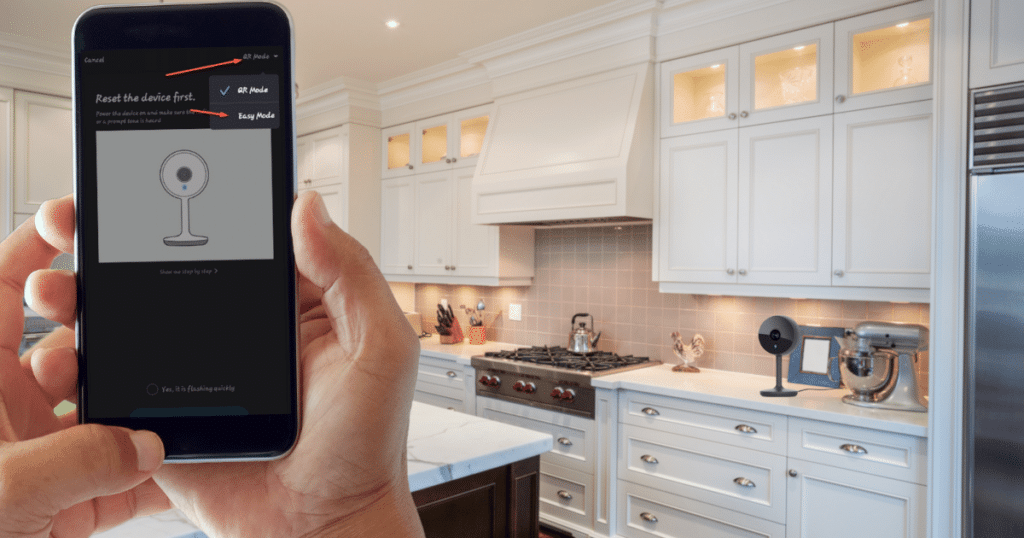
Have the solutions listed above not solved your problem? Before you return your Geeni Camera, there are still options for your camera setup. The Geeni App has an Easy Mode for setting up Wi-Fi cameras.
Easy Mode does not require users to scan a QR code, and you can set up your camera through your home’s Wi-Fi network. Since the QR code is the default option, you must navigate the app menu to find Easy Mode.
Follow these steps to set up your Geeni Camera without scanning a QR code:
- Open the Geeni App
- Reset Geeni Camera by Pressing the Reset Button
- Tap the [+] or Add Device on Geeni App Home Page
- Tap Wi-Fi Camera Device Option
- Type in Your 2.4GHz Wi-Fi Network Password
- Look at Top Right Corner for QR Mode and Tap the Option
- Choose the Easy Mode Option in Dropdown Menu
- Confirm the “Yes, it is flashing quickly” and Tap “Next Step”
- Wait For The Wi-Fi Camera to Complete the Setup Process
Frequently Asked Questions
A QR code for a Geeni Camera may not work for numerous reasons. The most common reasons why a QR code doesn’t work are the device screen is too dim, the device is too far away, or you have dark mode enabled. You can solve this issue by making your QR code easier to read on the device.
Your Geeni Cameras may not connect due to an improper or weak wireless network connection. Geeni devices require a 2.4GHz wireless connection and won’t connect to a 5GHz one. If you have difficulty connecting your Geeni camera device, contact Geeni support for technical assistance.
A Geeni Wi-Fi Camera requires a stable Wi-Fi connection to record and store video footage online. If you don’t connect your camera to a wireless network, you won’t be able to receive alerts on activity. However, all Geeni cameras have a local SD card that supports local video storage.
Conclusion
If you are frustrated about your Geeni Camera not scanning a QR code, we hope the solutions in this article resolve your problem. Geeni systems usually have a straightforward setup, but one of the main issues is the QR code scanning process.
When the solutions to your QR code problem don’t work, you can avoid the process with Geeni’s Easy Mode. You can contact Geeni support for more help if you have any additional questions.