

Is your Blurams camera not connecting to WiFi? If you own a Blurams camera, a WiFi signal is critical for many of the device’s functions. When your camera isn’t connecting to your home’s WiFi signal, you may be curious about the solution to this problem.
When your Blurams camera is not connecting to WiFi, the cause is typically due to a weak signal or incorrect frequency. Owners can solve this problem by bringing their network routers closer to the camera and adjusting settings.
Before you return your Blurams camera to the manufacturer, try the five troubleshooting methods in this article. Keep reading further to learn how to fix a Bluerams camera not connecting to WiFi.
Why Blurams Cameras Don’t Connect to WiFi

Generally, a user will face the same technical issues across all WiFi camera brands. Whether it’s Blurams or Merkury Innovations, there are similar reasons why a camera doesn’t connect to WiFi.
One of the most common culprits of connection difficulties is a weak network signal from your home’s router. WiFi cameras require a stable connection to send data from the camera to the cloud storage.
Fortunately, solutions to a Blurams camera not connecting are straightforward in most circumstances. Complete the following five troubleshooting methods to solve the problem with your WiFi camera device.
5 Ways to Fix a Blurams Camera Not Connecting to WiFi
1. Change to 2.4GHz Network
A common mistake users make when connecting their Blurams camera to a WiFi network is choosing to connect to the 5GHz network option. Typically, a home network has 5GHz and 2.4GHz network frequencies.
While a 5GHz network is faster, it isn’t compatible with Blurams devices. If you attempt to connect your camera to an incompatible network, you will receive an error message for the connection.
As the first troubleshooting step, you should confirm that you are attempting to connect to a 2.4GHz signal supporting an 802.11b/g/n protocol. If you don’t have an available 2.4GHz network connection, you can contact your internet provider for assistance enabling this option.
2. Reset the Camera and Router
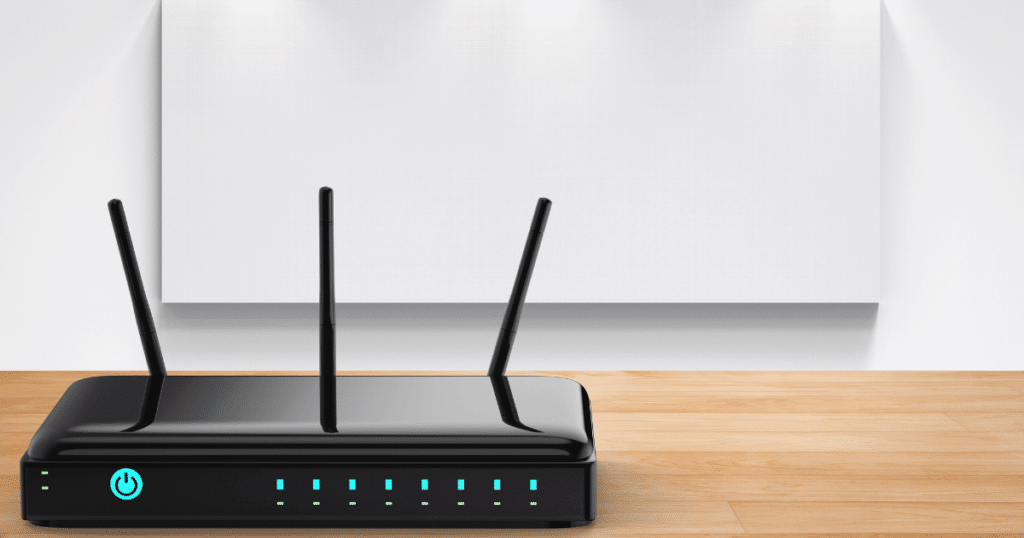
If your Blurams camera worked in the past and suddenly disconnected, you can solve this problem by resetting the device or router. The most straightforward way of restarting your devices is by unplugging them.
Start by unplugging your Blurams camera to see if the connection problem resolves itself. Unplug the camera and leave it for around 60 seconds before plugging it back into the electrical outlet.
If you are still facing a Blurams camera not connecting to WiFi, you should move on to resetting the network router. Unplug the router for 60 seconds before turning it back on and testing the signal for your camera.
3. Use WiFi Network With English Name
A unique problem some owners can face is that Blurams coding can’t register foreign languages accurately. If you have named your local WiFi network name in a foreign language alphabet, changing it to an English option is best.
After changing it to an English name, you can type the key into the mobile app and connect your camera. If you are reading this article, you likely don’t have this problem, but it’s still important to note it on the rare chance this relates to your situation.
Along with foreign languages, the coding implemented in Blurams cameras could have trouble detecting unique symbols. When in doubt, keep your WiFi network name as simple as possible so you can type it easily.
4. Bring the Router Closer to the Camera
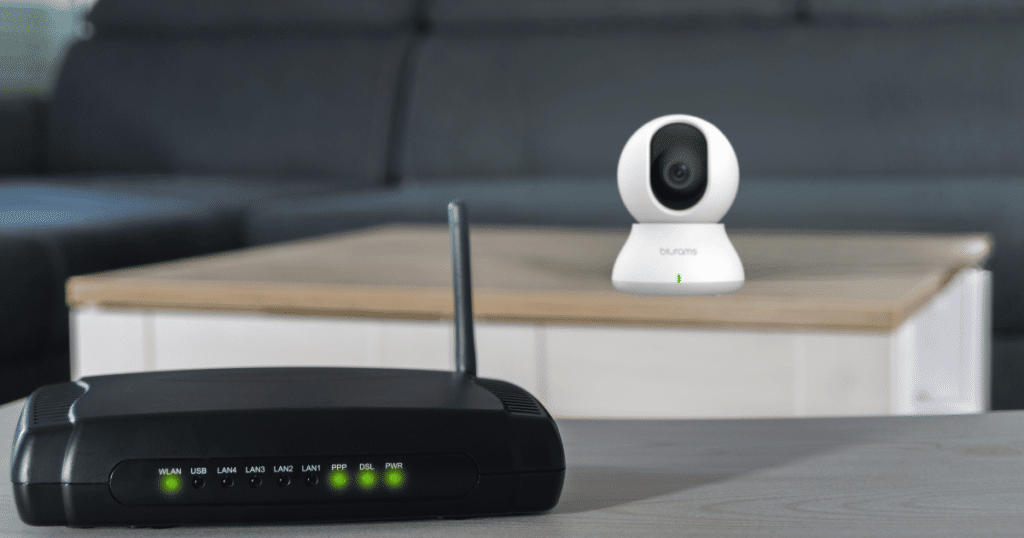
When your router and camera are set up correctly, the weak signal could be coming from a router too far away. The router should be close to the Blurams camera and provide stable connectivity.
If your network router is too far away, you may notice an unreliable or weak connection. As a test, you should temporarily move the camera close to the network router during the setup process.
When there is a solid connection between the router and the camera, the cause was likely the router’s distance. You can solve this problem by moving the router closer or using a WiFi signal amplifier if you can’t move the router.
5. Disconnect a Connected Device
Standard network routers have a limit to how many devices can be connected at a given time. While the standard network router can connect to a maximum of 250 devices, the more devices connect, the more unstable the connection.
If your network router supports many devices, disconnect a few unused devices temporarily. After disconnecting the devices, you can check if the router and Blurams cameras connection strengthens.
With fewer connected devices, your internet router will produce a stronger signal to your camera. The improved network signal may be the solution for a Blurams camera not connecting to WiFi.
Frequently Asked Questions
When your Blurams camera is not connecting, the most common reason is a weak network signal. Some ways to solve a weak signal are reducing the number of connected devices, moving the router closer, or resetting the device. You can contact your internet provider for assistance if these methods don’t solve the problem.
If your Blurams camera keeps going offline randomly, your network has an unstable wireless signal. Move your router closer to the camera and clear the area around the router. Additionally, you must input the username and password if you recently changed the credentials.
When your Blurams camera has a blinking green light, your camera device tries to connect to the internet or server. Additionally, a blinking green light will activate when connecting a new device. The camera is connected and stable when the light changes to a solid green light.
Conclusion
If you have encountered problems with connecting your Blurams camera to WiFi, you can try the techniques in this article. You will likely solve your issue with these methods and can continue the sign-up process.
Did these methods not work for you? Contact Blurams technical support line at +1-855-917-4591.