
Updated for 2026
An IP or Internet Protocol camera is a camera that sends data via an IP network. Sometimes, you may want to reset your IP camera during troubleshooting and don’t have a physical reset button.
Unplugging the system’s power source is the most common way to reset an IP camera without a reset button. Additionally, you can access the camera’s online interface to reset the camera in the settings menu.
Whether your IP camera has a broken reset button or no button at all, you can still reset your IP camera system. Keep reading further to learn how to reset an IP camera that doesn’t have a reset button.
Do All IP Cameras Have a Physical Reset Button?

The design of your IP camera will vary depending on the make and model. In most cases, an IP camera will have a physical reset button. Before moving on to the next steps in this article, you should first confirm your camera doesn’t have a button.
Mobotix is the only known manufacturer of IP cameras that has not added a reset protocol for their cameras. If you need to reset the cameras, send the IP camera system to the manufacturer for resetting assistance.
A reset button can not be obvious in some IP camera models, so referring to the owner’s manual can help. In some cases, a reset button will be a small hole in the back of the camera that requires the owner to press down with a paper clip or pin.
Some of the most common areas you will find a reset button is in the following locations:
- Behind the MicroSD Card Door: On many bullet and turret cameras, unscrewing the small metal access door on the bottom or side reveals the microSD slot alongside a recessed pinhole reset button.
- Inside the Dome Enclosure: Vandal-proof dome cameras require unscrewing the outer clear dome cover (using the included Torx or hex security wrench) to access the reset push-button on the internal gimbal board.
- On the Cable Pigtail: Some outdoor cameras feature a third lead on the multi-cable harness (next to the RJ45 Ethernet port and 12V DC barrel jack) protected by a plastic screw-cap containing a momentary push-button.
If you want to reset the IP camera with the button, you must press and hold down the button for 10-15 seconds. Once you’ve reset the camera, you can restore the system to its factory settings.
Can You Reset an IP Without a Button?
Does your IP camera not have a working reset button? Don’t worry, as there are other ways to reset the camera without a button. While a reset button is the most straightforward method, users can reset an IP camera with other techniques.
When troubleshooting an IP camera, you should only reset the system if you can’t access features of your camera or it’s not responding. Manually resetting an IP camera will restore it to the factory default settings.
Additionally, a manufacturer does not cover any damage caused during the reset process in their warranty policy. Once you’ve reset the camera, you must adjust the settings to their previous options.
3 Ways of Resetting an IP Camera
Without a button, you have three primary methods to reboot your IP camera. We recommend you complete these troubleshooting techniques in order. Our team organized these methods from easiest to hardest.
Unplug Power Source
If your camera has frozen, dropped its RTSP stream, or refused to connect to an NVR, a power cycle reboots the operating system and clears internal RAM without wiping your settings.
- For 12V DC Powered Cameras: Unplug the power adapter directly from the wall outlet or the back of the camera. Leave it unplugged for a minimum of 30 seconds to allow internal capacitors to drain, then plug it back in.
- For PoE (Power over Ethernet) Cameras: Unplug the RJ45 Ethernet cable from the camera or the PoE injector. Alternatively, log into your managed PoE network switch and toggle the specific port’s PoE power delivery OFF, wait 20 seconds, and turn it back ON.
If the camera doesn’t have a reset button, the system will automatically reset when you remove the power source. Removing the power source is the easiest method to reset an IP camera, but it doesn’t always work if it’s not the right model.
Use an IP Installer Tool
Many manufacturers offer an IP installer tool to help you locate and reset your camera on a local network. If your IP camera provider offers this feature, it’s easy to use and can factory reset your device.
Follow these steps to reset your IP camera with an IP installer:
- Install the IP Installation Software From the Manufacturer
- Run IP Installer and Click Search to Find Your Device
- Select Your IP Camera and Click the Factory Default Button
- Wait For the Device to Reboot (This Process Can Take a Few Minutes)
If you need help finding your manufacturer’s IP discovery tool, IPVM created a list of 40 IP discovery tools based on the manufacturer. You can download the tool that will help you reset your IP camera.
If you forgot the password, most utility tools will prompt you to export an encryption file (.xml) or scan a QR code. Send this token to the manufacturer’s technical support channel to receive an emergency reset decryption key.
Reset Using Management Page
Most modern IP camera systems have an online management platform that allows users to reset the camera. You can typically access this management center by typing the camera’s IP address in the URL of your web browser.
Follow these steps to reset your IP camera without a reset button with the management page:
- Open Web Browser and Type the Camera’s Default IP Address
- Type the Username and Password on the Login Page
- Click Through the Settings Menu Until you See Factory Reset/Default
- Press OK and Wait For Resetting Process to Complete
If you are the system owner, the web management platform is the fastest way to reset the camera without a reset button online. Since the process differs for each model, you can find more details in your owner’s manual.
How to Reset Your IP Camera’s Login Credentials
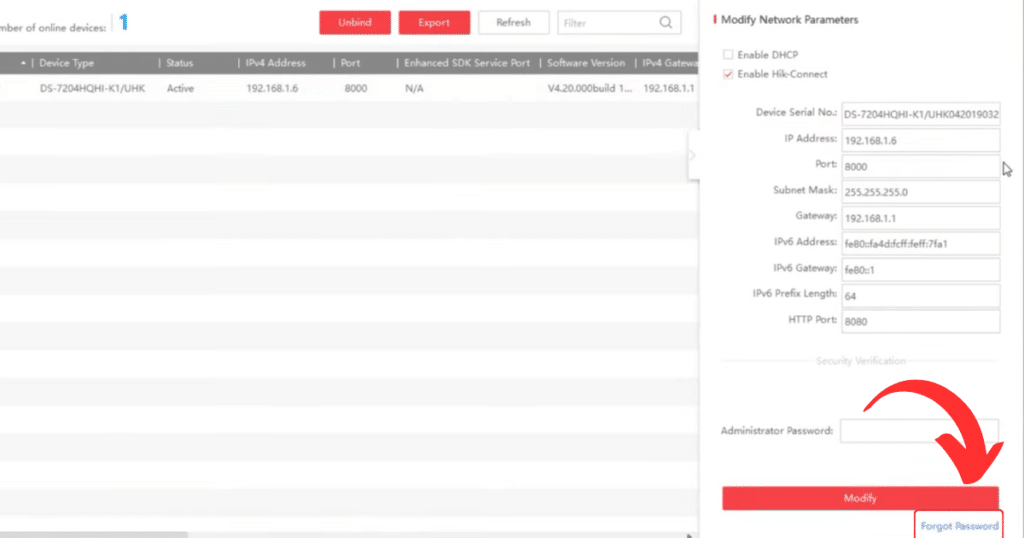
You must reset the system online when you forget the IP camera’s admin login credentials. Most camera providers allow you to reset your credentials by clicking the “Forgot Password” option under the sign-in boxes.
After clicking the forgot password option, the system typically provides resetting instructions for users. You will receive an email allowing you to input a new password into the system for your login credentials.
If you know the camera’s login credentials and can access its local IP address through a web browser, this is the cleanest way to perform a complete factory wipe.
- Find the Camera’s Local IP Address: Open your router’s connected device list, or use a network scanning tool like Advanced IP Scanner.
- Log In to the Web GUI: Open a web browser (Edge with IE-mode enabled or Chrome depending on plugin requirements), type the camera’s IP address into the address bar, and enter your admin username and password.
- Navigate to System Maintenance:
- Hikvision / Annke: Configuration > System > Maintenance > Upgrade & Maintenance > Default > Restore / Completely Restore
- Dahua / Amcrest: Setting > System > General > Default > Factory Default
- Reolink: Settings (Gear Icon) > System > Maintenance > Restore
- Axis: System > Maintenance > Factory Default
- Choose Your Reset Level:
- Default / Partial Restore: Restores all settings (image adjustments, motion zones) to default while keeping the current IP address and user credentials.
- Factory Default / Complete Restore: Wipes everything, including the IP address and admin password, returning the camera to its out-of-the-box inactive state.
- Wait for the Reboot: Allow 2 to 3 minutes for the internal flash memory to wipe and reboot.
Frequently Asked Questions
When you want to force a reset on your IP camera, you can complete the process by pressing the reset button. After pressing the reset button for 30 seconds, your IP camera will restore to the factory default settings. Additionally, you can reset the camera by removing its power source for 10-15 seconds.
If your IP camera goes offline, the most common cause is a poor internet connection on your local network. Additionally, an IP camera can lose connection if you update the IP address, firewall, or other settings. You can restore the connection of your camera by performing a hard reset on your device.
If you adjusted the IP settings of your camera, the default IP address for all cameras is 192.168.1.168. You can put this IP address in the URL of your web browser to bring up the management system of your IP camera. However, it’s best to change this IP address to improve the security of your cameras.
Conclusion
If you want to reset an IP camera that doesn’t have a reset button, this article gives you all the information you need. You can reset your camera by unplugging the camera or in the settings of the camera’s web management platform.
Along with IP cameras, these steps are similar to a camera system that is powered by PoE. With these techniques in mind, you can now reboot your camera without a reset button and restore its default factory settings!