
Did your Blink camera not connect, and did you receive a “command failed to complete” message? You aren’t alone, as numerous Blink customers have reported this issue with the security system.
If you receive this error message, the most common reasons are internet connectivity issues, battery replacement issues, and sync module distance. Adjusting one of these three things should fix the issue with your Blink camera system.
Resolving problems with any security camera system can be tricky, but our team at Serious Home Security made this guide to help. Keep reading further to learn how to fix a command failed to complete error message on the Blink camera.
Top Reasons For an Error Command Failed to Complete
f you haven’t received this error message before, you may be curious what it means. When a command fails to complete, it signals a connectivity issue. However, this connection issue can be caused by several things. The three most common causes are listed below.
Internet Connectivity Issues
The primary cause of this Blink camera problem is a weak or incompatible network connection. A Blink camera requires a stable internet connection to perform its basic functions, and a weak signal can cause an error message.
According to Blink support, you should have a minimum upload speed of 2.0 Mbps and a consistent internet connection. Additionally, the Wi-Fi network can only be 2.4GHz, and a 5GHz signal will not work for the Blink security system.
Improper Battery Installation

Has this problem occurred since you recently changed the batteries of your camera? If so, the error message may result from improperly installed batteries. A blink camera requires a consistent source of power to complete its functions.
If you didn’t see your battery light turn back on after installing the new batteries, they may not be installed correctly. Ensuring the batteries are connected to the proper terminals will allow you to move on to other solutions.
Distance From Camera and Sync Module
When you link a sync module to a blink camera, it has a maximum distance before it can no longer connect to devices. If you have a security system with numerous cameras spread out around the property, this may become a problem.
An owner may need to adjust the location of the sync module to find a place that establishes a better connection with the camera. This process can take some trial and error to ensure the distance is good for all cameras in the system.
How to Fix a Command Failed to Complete Error Message
Check System Batteries
If you suspect the problem with your Blink camera is the batteries, you should check to ensure they are properly installed. When AA batteries are inserted incorrectly, they won’t provide power for the cameras.
Unscrew the back of the camera and check to ensure the batteries are placed in the correct direction. If the batteries are installed correctly, you can replace them with new ones to remove the possibility of faulty ones.
Move the Sync Module Closer to the Camera

The sync module plays a crucial role in the functionality and integration of your Blink cameras. If your sync module doesn’t have a clear connection with the camera, the command may fail to complete.
Moving the sync module to another area of your home to see if the connection is resolved. Choose a location that does not have many building materials that can affect the signal strength of the sync module.
Reboot Network Router
When the problem isn’t resolved by adjusting the Blink system, your next solution should be related to the Wi-Fi network. A command will fail to complete when the network signal is weak in your property.
Most internet providers recommend restarting the network router as the first step to resolving connection issues. After rebooting the router, wait for 15-20 seconds and see if the Blink security system works again.
Check the MAC Address Filter on the Router
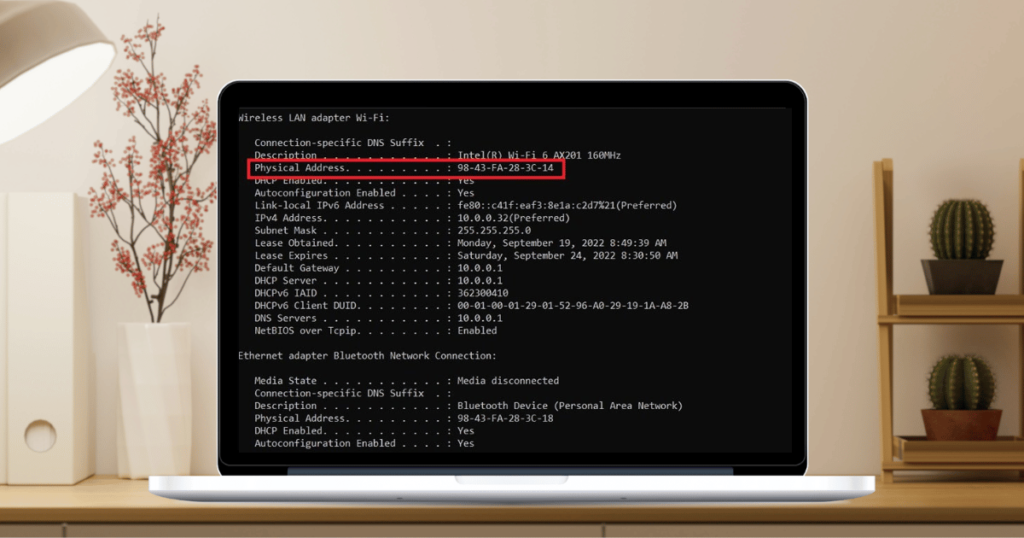
Depending on your home’s network setup, you may have security settings that automatically block certain MAC addresses. The Blink camera comes with a unique MAC address, and it may be placed in a blocked category by your network provider.
If your network router blocks your Blink camera’s address, you should add it to your network router’s excluded list. Since this process differs for every provider, you should learn about your router’s unique MAC filtering processes.
Restart Blink Cameras
Lastly, reboot your Blink camera to see if the problem resolves. This technical problem is often temporary and eliminated with a restart. Most Blink camera models have a dedicated reset button that you can press.
Once you find the reset button, press it down with a paperclip until you see it flash red. After you have reset the camera, you may need to reinstate your settings. However, you can often resolve the technical issues after this step.
Frequently Asked Questions
Your Blink cameras might repeatedly show a “Failed” error message due to various issues like poor Wi-Fi connection, low battery, or camera placement. Ensure a strong Wi-Fi signal, replace or recharge batteries, and position the camera closer to the sync module. Resetting or updating the camera firmware may also help resolve the issue.
Blink cameras may fail to update due to internet connectivity issues, low battery levels, or firmware glitches. Ensure a stable internet connection, charge or replace the batteries, and try updating again after a few minutes. If problems persist, contact Blink customer support for assistance with troubleshooting the firmware issue.
If your Blink camera isn’t working with new batteries, ensure they are inserted correctly and fully charged. Check for corrosion or debris in the camera’s battery compartment and clean it out if necessary. If the issue persists, contact Blink support for further assistance, as it may indicate a hardware malfunction or battery compatibility issue.
Conclusion
When your Blink camera command failed to complete, the most likely cause will be a network issue. If this is a first-time error message, you should check the speed of your internet and reset the router if it’s not connecting.
Did this article resolve your technical problem? Let us know in the comments!