
Was your Lorex camera feed stopped on 1 camera? A stopped camera feed can put your home or business’s security at risk, so it should be resolved quickly. However, it’s challenging to determine the cause of the problem.
The four most common reasons for a Lorex camera feed to stop on one camera are:
- Not Enough Power
- Weak Internet Connection
- Damage to the Hardware
- Unknown Configuration Issue
With experience operating various Lorex camera systems, we have found reviewing these four things will solve 99% of your technical problems. Keep reading further to restore your Lorex camera’s feed.
Potential Reasons and Solutions for a Lorex Camera Feed Stopped on 1 Camera
The Lorex Client Software manages the live video feed from your various Lorex security cameras to your monitor. This is the software for security monitoring, but you can also use third-party software like Blue Iris for compatible cameras.
If you see one screen displaying something like “offline,” it is likely due to some internal setting problem or external cable issue. Most software has similar troubleshooting steps, so you can follow this guide even if you don’t use the Lorex-branded software.
Below are the four potential problems and solutions whenever a Lorex Camera feed goes blank on the monitoring system.
Not Enough Power
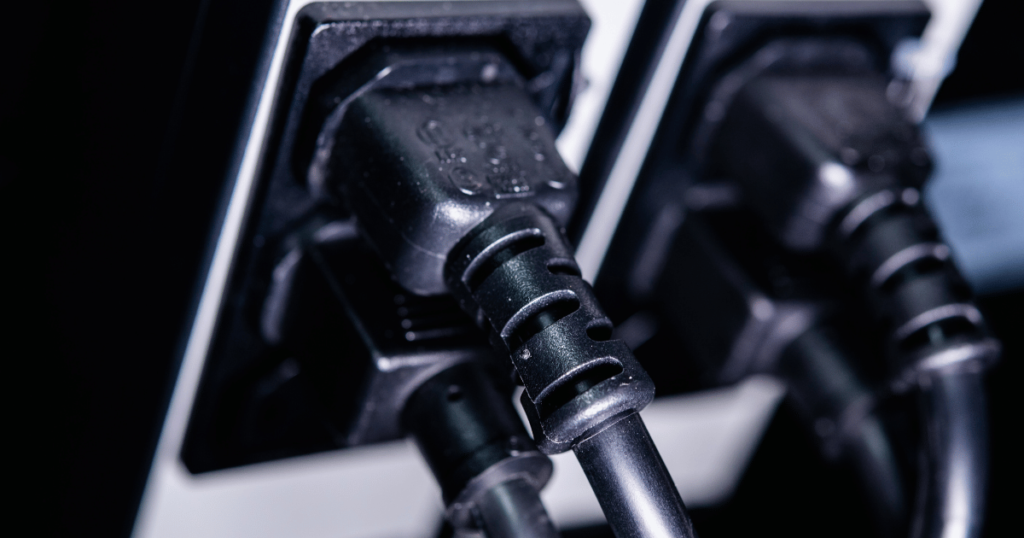
The Lorex security camera system depends on a consistent power supply to keep its cameras actively monitoring and recording video of the property. However, if the primary power source is not delivering electricity to sustain the video feed, it will go blank.
The most common reason for the lack of power is a damaged adapter or loose electrical connection. So, you need to check the power cable connected to the faulty camera to ensure it is securely plugged into it. Sometimes, the wire comes loose and needs some readjusting.
If you still have problems, plug the power adapter into a different electrical outlet to see if that fixes the issue. It could be that you have a faulty electrical outlet. Inspect the power adapter for potential damage if switching electrical outlets doesn’t resolve it. You might have to replace the power adapter if you see any damage.
Do you have a “power-over-ethernet” (PoE) Lorex camera? Such a camera receives data and power from the Ethernet cable without a power adapter. In this case, inspect the Ethernet cable connected to the camera to ensure it is connected securely. Also, verify that the switch status on the camera is activated.
Related Article: A Complete List Of Ways to Power a Security Camera
Weak Internet Connection
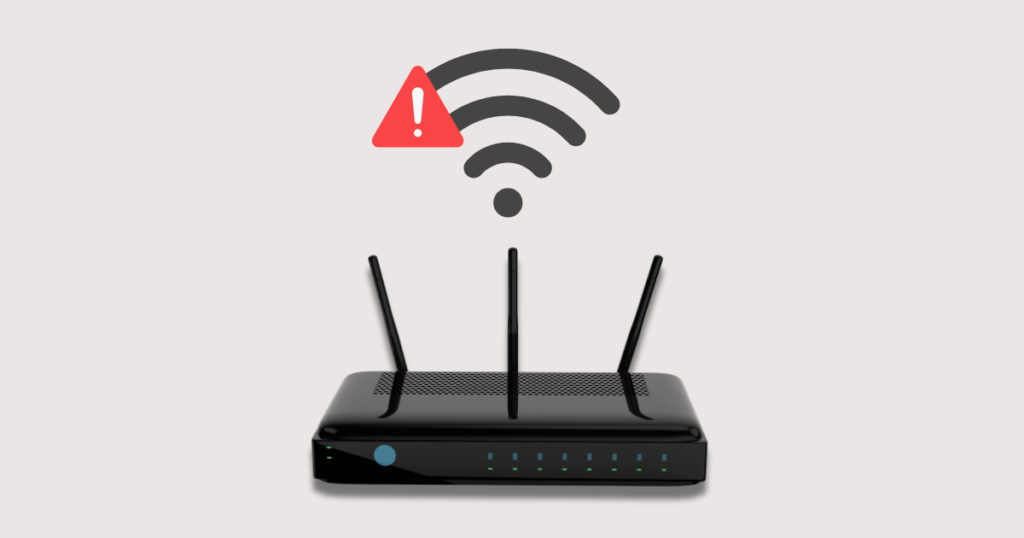
A poor wired or wireless (Wi-Fi) internet connection could cause problems with a Lorex camera. After all, the internet must transmit real-time video feed data from the camera to the monitoring system. Without a signal, you will see a jumbled video picture on your screen or no picture.
A poor internet connection can be attributed to a weak Wi-Fi signal for wireless users or a loose ethernet connection for wired users. If you’re using a Wi-Fi connection, check the strength of the Wi-Fi signal going to the camera by opening the Lorex mobile app.
If it shows a weak Wi-Fi signal, it could mean the camera is too far away from the router. One potential solution is to relocate the router closer to the camera to strengthen the Wi-Fi signal.
If relocating the router is not possible, consider installing a Wi-Fi extender to extend the Wi-Fi signal to the camera when it is farther away. You might also want to check and see if there are any problems with your internet service.
If your Lorex camera uses a wired Ethernet cable to connect to the internet, verify that the connection is securely installed. Sometimes, an ethernet cable connection can loosen if you move the NVR system.
Damage to the Hardware
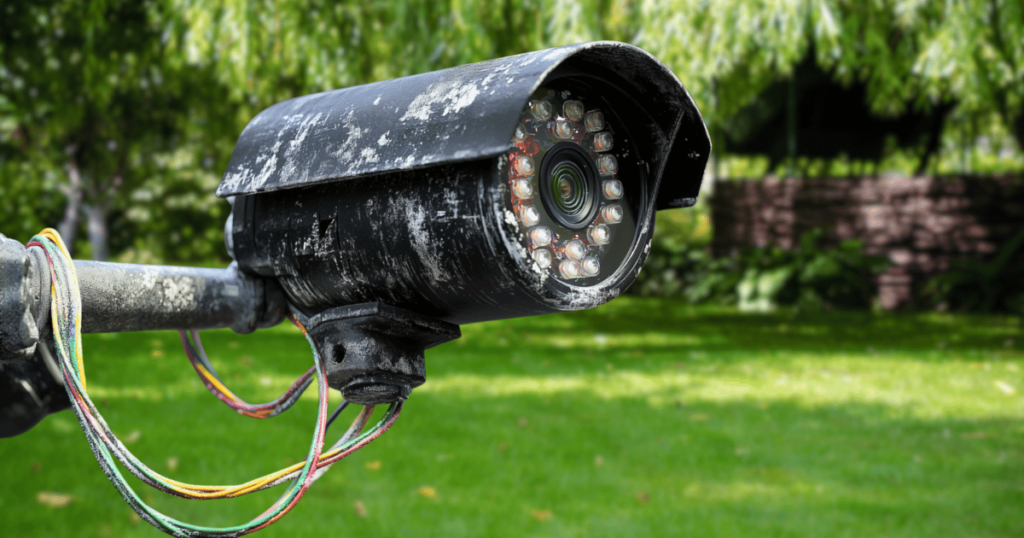
Security cameras are always susceptible to damage when outside. You never know when bad weather, vandalism, or some other environmental factor might cause damage to your Lorex camera.
It only takes one hardware component to suffer damage for an interruption in the security system. If you have verified that the power sources and connectors are secure and intact, your camera feed issue could be due to hardware damage.
Inspect your camera unit and all its connectors and cables thoroughly for signs of damage or deterioration, such as dirt, corrosion, destruction, or wear and tear.
Sometimes, you might only need to clean dirt and debris from the camera lens to restore its visual capabilities. On the other hand, if you see any damage to the camera, connectors, or cables, you must replace the damaged hardware with new hardware.
Unknown Configuration Issue
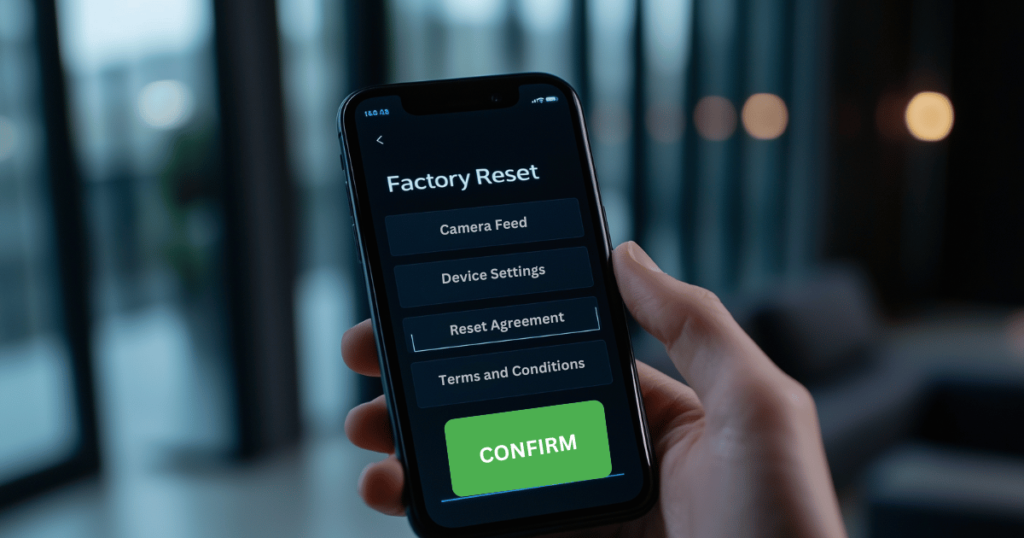
Have you still been unable to resolve the cause of your camera feed issues? The only other possibility is that the system has some unknown configuration issue. First, restart the camera by unplugging the power source for 10 seconds and then reconnecting it. That should resolve temporary configuration problems or malfunctions.
If restarting the camera doesn’t resolve the issue, resetting the Lorex camera system to its original factory settings is the only solution. You can do this by opening the Lorex mobile app and restoring the factory settings. Make sure you have exhausted all other possible solutions before attempting this.
Remember that resetting the system will wipe out all the custom configurations you might have made. Since these configurations might have caused your camera feed problem, restoring them to the factory settings could be the last viable solution to resolve it.
Preventative Tips
Here are some ways you can prevent your Lorex camera feed from having any issues in the future:
- Regularly clean your cameras by removing all dust and debris from them.
- Periodically inspect your cameras and hardware for signs of damage.
- Install your cameras safely and securely away from impactful weather conditions or potential vandals.
- Install an uninterruptible power supply to back up the power to your security cameras.
- Activate the “Quality of Service” option in your router settings to prioritize the internet connection to your cameras.
Conclusion
Resolving a Lorex camera feed stopped on 1 camera requires taking a systematic approach to troubleshooting. Users can typically restore their security camera’s functionality by carefully examining network connections, power supply, firmware, and potential hardware issues.
When DIY methods fail, contacting Lorex technical support remains the most reliable path to a comprehensive solution. Regular maintenance and proactive monitoring can help prevent future feed disruptions and ensure consistent home security surveillance.